Purpose link h2
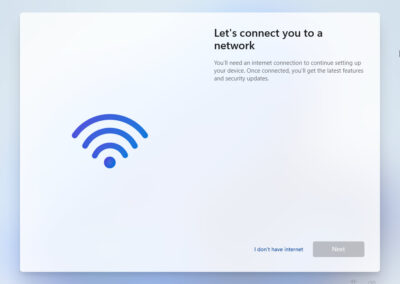
This page documents commonly used techniques to complete a Windows 11 installation without signing in with a Microsoft account and without an active internet connection. These methods are useful for lab environments, offline systems, privacy focused setups, testing, and recovery scenarios.
Background link h2
Recent Windows 11 builds increasingly enforce:
- Mandatory internet connectivity during Out of Box Experience OOBE
- Mandatory Microsoft account sign in
Despite this, Windows still includes supported and semi supported mechanisms that allow local account creation and offline installation.
Method 1 OOBE Bypass Command Recommended link h2
This is the simplest and most reliable approach.
Steps link h3
- Begin Windows 11 installation normally
- Proceed until the screen that requests internet connectivity
- Press Shift + F10 to open Command Prompt
- Enter the following command
| |
- Press Enter
- The system will reboot automatically
- Resume setup
- Select I do not have internet
- Choose Continue with limited setup
- Create a local user account
Notes link h3
- This works on most Windows 11 builds
- NRO refers to Network Requirement OOBE
- Microsoft periodically attempts to hide this option but it continues to function
Method 2 Disable Network During Setup link h2
Physically or logically removing network access can expose the local account option.
Options link h3
- Unplug Ethernet cable
- Disable Wi Fi at the router
- Use airplane mode on laptops
Result link h3
After several failed connection attempts, Windows may offer a local account path.
Limitations link h3
- Less reliable on newer builds
- Often combined with Method 1
Method 3 Registry Based Bypass link h2
This approach manually disables the Microsoft account requirement.
Steps link h3
- At OOBE press Shift + F10
- Open Registry Editor
| |
- Navigate to
| |
- Create or modify the following DWORD value
| |
- Close Registry Editor
- Reboot
Result link h3
The installer exposes offline setup options
Method 4 Create Local Account via Command Line link h2
If the UI refuses to present a local account option, one can be created manually.
Steps link h3
- Press Shift + F10 during OOBE
- Run
- Reboot
- Sign in using the created account
Notes link h3
- Useful for recovery or broken OOBE flows
- Password can be changed later
Method 5 Rufus USB Installer Options link h2
When creating installation media with Rufus, several restrictions can be disabled ahead of time.
Rufus Options link h3
- Remove requirement for Microsoft account
- Remove requirement for online Microsoft account
- Disable TPM and Secure Boot checks
Result link h3
- Local account creation during setup
- No forced internet requirement
Notes link h3
- One of the cleanest approaches
- Works before installation even begins
Security and Update Considerations link h2
- Windows Update can still be enabled after installation
- Microsoft account can be added later if desired
- These methods do not prevent domain join or Azure AD join later
Use Cases link h2
- Offline systems
- Privacy focused environments
- Virtual machines
- Lab testing
- Incident response and forensics
Summary link h2
Windows 11 enforces cloud integration by default, but local accounts and offline installs remain fully functional when accessed through documented bypass mechanisms. The OOBE bypass command remains the most consistent method, while Rufus offers a pre installation solution for repeated deployments.